This scenario plays out daily for field service teams that rely on Drive without a real integration plan. Connecting Google Drive to a field service management (FSM) platform sounds simple on paper. In practice, results depend heavily on which integration method you choose, how you set permissions, and whether your whole team actually follows the same naming habits.
This guide walks through whether the integration is worth doing, what you need before you start, the exact setup steps, the factors that determine whether it works long-term, and the mistakes that trip up most teams.
Key Takeaways
- Drive integration works best for teams already in Google Workspace needing simple file attachments.
- Success hinges on three factors: integration method, permission structure, and naming consistency.
- SolvPro's built-in job records and phase-based estimates can replace a separate Drive connection entirely.
- Sloppy setups lead to duplicate files, exposed customer data, and techs stuck searching on-site.
How to Integrate Google Drive with Field Service Management
Getting Drive and your FSM platform to talk to each other involves four stages: pick your method, connect the accounts, map your folders, then test and train. Skip any of these and you'll be fixing problems for months.
Step 1: Choose Your Integration Method
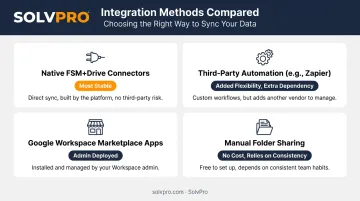
Before touching any settings, figure out which connection type fits your team:
- Native FSM+Drive connectors: built directly into the platform, usually the most stable option
- Third-party automation (Zapier, Make) adds flexibility, but introduces a dependency and often misses subfolder activity
- Google Workspace Marketplace apps, installed individually or deployed by an admin across the org
- Manual folder sharing has no setup cost but relies entirely on human consistency
Confirm your FSM platform supports one of these before committing time to a workaround. Also check your Google Workspace plan's storage limits on Google's pricing page. Business Starter, Standard, and Plus tiers currently provide 30 GB, 2 TB, and 5 TB per user respectively, pooled across the organization, worth knowing before you start uploading years of job photos and videos.
Step 2: Connect and Authenticate Accounts
Most integrations use OAuth to link your company Google account to the FSM platform. An admin typically logs in, reviews the requested permissions, and approves the connection.
Here's the part people get wrong: they assume they're granting access to one folder. In reality, Google's drive.file scope only covers files the app creates or files a user specifically opens or shares with it, not a "folder-only" bucket like many assume.
Before rolling this out company-wide:
- Review exactly which scopes the app is requesting
- Run one test upload from the office
- Confirm the file lands where you expect, tied to the right job
- Only then extend access to the full team
Step 3: Map Folders to Jobs, Customers, or Work Orders
A Drive integration without folder structure is just a bigger mess, faster. Set your structure before syncing goes live, not after.
- Decide whether folders organize by customer, job number, or project phase
- Turn on auto-folder creation if your integration supports generating a new folder per work order
- Lock in a naming convention (date, job ID, document type) so files stay identifiable to both office staff and crews in the field
Google's own shared drive best practices recommend creating a separate shared drive per project or team, with consistent naming prefixes to tell similar drives apart. Skip this step and you'll be renaming hundreds of files by hand within a month.
Step 4: Test, Train, and Monitor Ongoing Sync
Don't flip the switch for the whole crew on day one.
- Upload a test file from the office, then from a phone in the field, and confirm both land correctly
- Walk crews through exactly where and how to upload photos from a job site, not just once, but until it's habit
- Set a recurring audit, weekly or monthly, to check permissions, sync errors, and storage usage
Skipping the audit is how a small permissions mistake turns into a real data exposure six months later.
When & What You Need to Integrate Google Drive with Your FSM System
Not every service business should bother with this integration. It depends on your size, your file volume, and how critical job-context is.
When It Makes Sense
Drive integration fits best when:
- You're a smaller team already standardized on Google Workspace
- You don't want to pay for advanced FSM file features
- File volume is manageable, and photos are more "backup" than compliance documentation
It gets riskier fast for growing crews, compliance-heavy trades, or teams that need guaranteed offline access. Juggling two systems introduces delays, and those delays create the exact context gaps you were trying to avoid.
What You'll Need
Before you start, line up:
- A Google Workspace business account with admin permissions (a personal Gmail Drive won't give you the controls you need)
- An FSM platform that supports Drive integration natively, via API, or through a tool like Zapier
- A pre-agreed folder and naming structure, plus a training plan for the entire team before go-live
Key Factors That Affect Integration Success
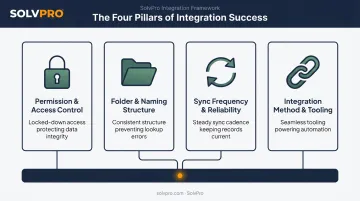
Whether this integration works well or badly comes down to configuration, not the existence of the connection itself. Four factors matter most:
- Permission & access control settings: Overly broad sharing exposes sensitive customer data to people who never should see it. Scope folder-level permissions tightly to what each role needs to reduce the risk of data leaks and protect client trust.
- Folder & naming structure consistency: Inconsistent naming between office staff and field crews makes files nearly impossible to find later. A standardized structure speeds up retrieval and cuts down on duplicate uploads.
- Sync frequency & reliability: Real-time sync versus manual batch sync determines whether a tech sees the current file version on-site. Offline files must be prepared in advance, since offline edits only apply once the device reconnects and newer changes can overwrite older ones. Unreliable sync in low-connectivity areas leaves techs working from outdated paperwork.
- Integration method & tooling choice: Native API integrations tie files directly to job records, while Zapier or manual links only loosely reference them. This choice affects setup cost, ongoing reliability, and how deeply your Drive files connect to reporting and job history down the line.
Common Mistakes and Troubleshooting Tips
Most Drive integration failures trace back to one of a handful of avoidable mistakes.
Common Mistakes to Avoid
- Skipping folder and naming standardization before rollout, which creates chaos once multiple crews start uploading at once
- Granting Drive-wide access instead of folder-specific permissions, opening up unnecessary security exposure
- Relying on manually copy-pasted links instead of automated sync — this breaks down fast as job volume grows
Most fixes start with checking permissions and confirming the connection is active. Here's how to diagnose common problems:
Troubleshooting Common Issues
| Issue | Likely Cause | What to Check |
|---|---|---|
| Files not appearing in job records | Expired OAuth token or broken API connection | Re-authenticate the Drive connection in SolvPro's settings and confirm integration status |
| Duplicate or conflicting file versions | Multiple people editing offline copies simultaneously | Enable Drive's version history and restrict simultaneous edits on shared documents |
| Field techs can't access files on-site | Missing offline setup or overly restrictive sharing permissions | Verify sharing settings and test mobile connectivity before crews head out |
Alternatives to Google Drive Integration for Field Service Teams
For many growing service businesses, a separate Drive integration adds a layer of complexity that a built-in system can eliminate entirely.
Built-In FSM Document & Photo Management
Some FSM platforms tie every job photo, PDF proposal, and file directly to the work order without any external permissions to manage. SolvPro takes this approach — job photos, notes, change orders, and complete job history all live inside the same digital work order, from the original estimate through the final invoice. Phase-based estimating generates customer-facing PDF proposals natively, so there's no folder to create or link to share.
Trade-off: less flexible if your team needs heavy collaboration with people outside the platform entirely.
Dropbox or Microsoft OneDrive Integration
A solid fit for businesses already standardized on Microsoft 365 instead of Google Workspace.
Trade-off: the same folder and permission management headaches, just running through a different cloud provider.
Dedicated Document Management System (DMS)
A dedicated DMS suits enterprise-scale operations with strict compliance, audit trail, or retention requirements.
Trade-off: added licensing cost and setup complexity that's often overkill for small-to-midsize crews.
Frequently Asked Questions
How do I integrate Google Drive with a field service management system?
Connect through a native API, marketplace app, or automation tool like Zapier, then authenticate the account and map folders to specific jobs. In SolvPro, link the folder to the matching job, then train the team on consistent uploads before rolling out.
Can ServiceNow be integrated with Google Drive for field service management?
ServiceNow offers a Document Service Framework for Google Drive that can copy a Drive document version into a ServiceNow attachment. Official documentation doesn't specifically confirm automatic linking to individual tickets or work orders, so test this in your own environment first.
Is Google Drive a content management system (CMS)?
No. Drive is cloud file storage and collaboration software, not a CMS. It lacks structured publishing workflows and job-context features that a true CMS provides.
Do I need Google Workspace to integrate Drive with my FSM software?
A personal Gmail Drive can technically connect, but Google Workspace is strongly recommended. It gives you admin-level controls and business-grade permission management that personal accounts simply don't offer.
Is it safe to store customer job photos and documents in Google Drive?
Safety depends entirely on your permission settings. Use folder-level sharing, enforce two-factor authentication, and run regular access audits to keep customer data protected.
Can field technicians access Google Drive files offline on job sites?
Yes, through Drive's offline mode, but files must be marked available offline before connectivity drops. Functionality is more limited than what purpose-built FSM platforms like SolvPro are designed to handle for crews working without steady connectivity.