It's 6 PM and your office admin is still waiting on a signed work order that was supposed to come back three hours ago.
Meanwhile, a crew lead is parked outside a job site, phone in hand, trying to get a customer to approve a change order before the guys start tearing into drywall.
If you run a general contracting, HVAC, plumbing, electrical, or landscaping business, this scene probably feels familiar. Paperwork still gets printed, driven to job sites, or chased down through a string of texts and emails.
Automating document signing inside crew management software sounds like an easy fix. In practice, results vary a lot. It depends on which documents you automate, whether crews can actually sign from a phone in the field, and how tightly the signing tool connects to scheduling and invoicing.
This guide walks through exactly how to automate signing, when it's worth doing, what you need before you flip the switch, and the mistakes that trip up most crews.
KEY TAKEAWAYS
- Automated signing cuts paperwork chasing, so crews finish jobs and get paid faster.
- Success depends on mobile-friendly, offline-capable signing built into your workflow.
- Estimates, work orders, change orders, safety forms, and subcontractor agreements top the list.
- Most rollouts fail from skipped compliance checks, poor connectivity, or siloed e-sign tools.
- A signature that lands on the job record rather than in a separate e-sign inbox is what removes the manual filing step.
How to Automate Document Signing in Crew Management Software
These steps apply whether you're building this inside an all-in-one platform like SolvPro or bolting e-signature onto tools you already use. The order matters: skip a step and you'll end up automating the wrong thing.
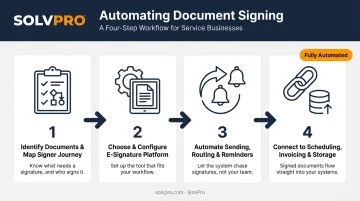
Step 1: Identify Which Documents Need Signatures and Map the Signer Journey
Start by listing every document that requires a signature across your office and field operations:
- Estimates and proposals
- Work orders
- Change orders
- Safety and compliance checklists
- Subcontractor agreements
For each one, figure out who signs and in what order. A customer approving a proposal is different from a subcontractor countersigning a work order after the customer has already agreed to it. Some documents need one signature; others need several, in sequence.
Flag anything with variable, job-specific data before you go further. A multi-stage estimate with multiple line items and milestone payments has to auto-populate correctly, or you'll send out a signature request full of placeholder text and blank fields.
Step 2: Choose and Configure a Platform with Built-In E-Signature
Not every "e-signature feature" works the same way once a crew lead is standing in a driveway with one bar of signal. Before configuring anything, confirm the platform supports true mobile signing, not just a signature pad that only renders properly on a desktop browser.
From there:
- Build reusable proposal templates with signature fields tied to job and phase data. SolvPro's digital estimates feeds line items directly into customer-facing PDF proposals, so each signature request matches the actual scope, not a generic quote.
- Set user roles and permissions so only authorized staff, like office admins or crew leads, can generate and send documents for signature. This matters most for contracts and anything touching pricing or payroll.
- Enable a bilingual signing interface if your crews or customers communicate primarily in Spanish. SolvPro includes a fully bilingual English/Spanish interface across office and field roles at no extra cost, so homeowners and crew members can review documents in their preferred language.
Step 3: Automate Sending, Routing, and Reminders
Once your documents and roles are set up, the next job is making sure paperwork moves without someone having to remember to hit send.
- Set trigger rules so documents auto-generate at the right stage, like a work order going out the moment an estimate is approved. SolvPro's instant conversion from approved estimate to job removes that manual handoff between sales and scheduling.
- Configure reminders for pending signatures so jobs don't stall while a customer forgets to open an email.
- Define routing order for multi-signer documents. Some need parallel signing (everyone signs at once); others need sequential signing (customer approves before a subcontractor signs off).
Step 4: Connect Signed Documents to Scheduling, Invoicing, and Storage
This is the step that separates automation that actually saves time from automation that just moves paperwork around faster.
- Link signed proposals to scheduling so crews only get dispatched once signoff is confirmed. No more showing up to a job that was never actually approved.
- Sync with accounting. A QuickBooks Online connection that fires an invoice right after a signature is captured closes the gap between "job done" and "invoice sent."
- File everything automatically into a searchable job record, with an audit trail showing who signed, when, and where.
When Should You Automate Document Signing (and What Are the Alternatives)?
Full automation isn't the right call for every document or every business. It's a fit-to-scale question as much as a technology question.
Strong-fit scenarios:
- Multiple crews working simultaneously across job sites
- High volume of recurring paperwork (estimates, work orders, change orders)
- A business already losing real time or revenue to slow paper-based signoff
That revenue loss isn't hypothetical. 82% of contractors waited more than 30 days for payment in 2024, up from 72% the year before, according to Rabbet's 2024 Construction Payments Report. Slow, unorganized paperwork was cited by over a third of general contractors as a primary cause.
Automation may be premature if:
- A single-crew operation generates too little paperwork to justify the setup
- Contracts require heavy negotiation and attorney review every time
- You're piloting a new digital workflow and want to validate it manually first
Alternatives Worth Considering
| Approach | Best for | Tradeoff |
|---|---|---|
| Standalone e-signature tool | Occasional signing needs | Creates records disconnected from job and crew data |
| Hybrid manual-plus-digital | Transition period | Doesn't scale as crew count grows |
| Integrated crew management platform | Multi-crew, recurring paperwork | Signed docs connect directly to job status and invoicing |
A standalone tool can work fine if you sign three contracts a month. Once you're managing a dozen crews and dozens of documents weekly, that disconnected record-keeping turns into its own admin burden.
What You Need before Automating Document Signing
Preparation determines whether automation actually saves time or just creates a new bottleneck with extra steps.
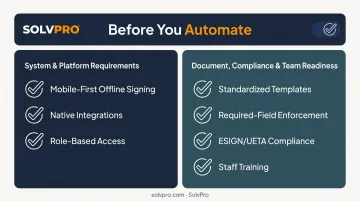
System & platform requirements:
- Mobile-first signing with offline capture and auto-sync for job sites with weak or no signal
- Native integration between estimating, scheduling, and accounting, not a signature add-on stitched onto separate systems
- Role-based access controls so contracts and payroll documents only reach authorized users
Document, compliance & team readiness:
- Standardized, reusable templates for proposals, work orders, and change orders with job and customer data pre-filled
- Clear signature field placement with required-field enforcement, so a document can't go out half-finished
- Confirm your signatures meet ESIGN Act and UETA requirements for legal enforceability in the states where you operate
- Train office staff and crew leads on the new workflow, including bilingual resources for Spanish-speaking crews
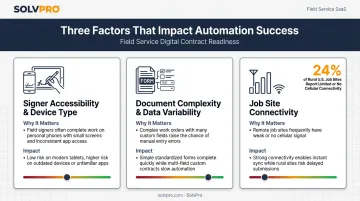
Key Parameters That Affect Automation Results
Outcomes depend on a handful of controllable variables, not just which software you buy.
Signer Accessibility & Device Type
Crews typically sign on phones or tablets in the field, not office desktops. Why it matters: a platform not optimized for mobile creates delays and abandoned signature requests. Impact: jobs stall while customers wait for a form to load correctly on a small screen.
Document Complexity & Data Variability
Multi-stage estimates and multi-line work orders need dynamic, auto-filled fields. Why it matters: static, one-size-fits-all templates cause manual rework. Impact: office staff end up re-entering data that should have populated automatically, undoing the time savings automation was supposed to deliver.
Job Site Connectivity
Rural and remote job sites often have unreliable or no internet access. This isn't a minor edge case. According to the FCC's 2024 broadband deployment data, mobile 5G service at usable speeds isn't physically deployed to almost 36% of rural Americans.
Impact: platforms without offline capture lead to missed signatures and delayed dispatch, exactly the problem automation is meant to solve.
Common Mistakes & Troubleshooting
Most failed rollouts trace back to one of three things:
- Skipping the signer journey map. Documents route to the wrong person or step because nobody defined the order beforehand.
- Choosing a disconnected e-sign tool. This recreates the same paperwork silo automation was supposed to eliminate.
- Skipping mobile and offline testing. Crews hit a wall in the field, get frustrated, and quietly go back to paper.
Quick Fixes for Common Problems
- Problem: Crews can't complete signatures in low-signal areas. Fix: Ask your vendor directly whether the mobile app supports offline capture, and how it behaves once the device reconnects.
- Problem: Signed documents aren't triggering next steps like invoicing or scheduling. Fix: Check integration settings and confirm automation triggers are correctly mapped to document status.
Conclusion
Field service software helps you manage the work. SolvPro helps you make sure the work makes money.
The right tool depends on your trade, crew size, job mix and the systems you already run. Test it on real jobs before you commit, and check that crews will actually enter what the office needs. When you want to see it on your kind of work, Book a Demo.
Run the Job. Protect the Profit.
Frequently Asked Questions
Is an Electronic Signature Legally Binding for Crew Management Documents Like Work Orders and Contracts?
Yes. Electronic signatures are legally binding under the U.S. ESIGN Act and UETA when properly captured with clear signer intent. Most crew management platforms build these compliance requirements into the signing process automatically.
What's the Difference Between an Electronic Signature and a Digital Signature in Crew Management Software?
An electronic signature captures a person's consent to sign, while a digital signature adds cryptographic verification of the signer's identity. Most crew-based businesses only need standard electronic signatures for day-to-day paperwork.
Can Field Crews Sign Documents on Mobile Without an Internet Connection?
It depends on the platform. Look for offline capture with auto-sync once the device reconnects, which is essential for remote or rural job sites with spotty coverage.
How Much Time Can Automating Document Signing Actually Save a Crew-Based Business?
Time savings come from eliminating manual chasing, printing, and re-entry. A Forrester study commissioned by Adobe found one modeled enterprise cut document cycle time by 96%, from seven business days to two hours.
Do I Need Separate E-Signature Software If My Crew Management Platform Already Includes Signing?
Usually not. A built-in, integrated signing feature keeps signed documents tied to job, scheduling, and invoicing data, instead of living in a disconnected tool you have to check separately.
Is Bilingual E-Signature Support Available for Crews and Customers Who Speak Spanish?
Some platforms offer this, including SolvPro. Its fully bilingual English/Spanish interface lets office staff and field crews send and sign documents in whichever language they're most comfortable with.