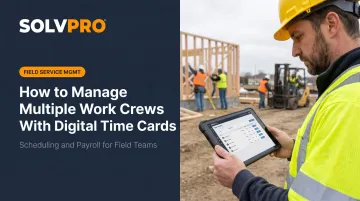
Digital time cards solve this — but only when the system is configured around how your crews actually work. This guide walks through the exact setup steps, the variables that affect accuracy, and the mistakes that undermine the whole thing.
Key Takeaways
- Each crew needs a designated lead with approval authority before anyone clocks in
- GPS-based clock-ins tie hours to actual job sites, not parking lots or living rooms
- Job site tagging at clock-in turns raw time data into real labor cost reports
- A two-step approval workflow — crew lead, then office admin — catches errors before payroll runs
- Multi-crew setup in SolvPro can be operational in under 10 minutes
How to Set Up Digital Time Cards for Multiple Crews
Step 1: Set Up Your Job Sites and Crew Structure
Before anyone clocks in, your platform needs to reflect how your operation is actually structured.
Create a separate entry for each active job site or work order. This is how hours get sorted by location — without it, labor costs pile into one undifferentiated bucket and job costing becomes guesswork. In SolvPro, each job or work order is its own digital record, complete with crew instructions, notes, photos, and materials tied to a specific location.
Build your crew groups and assign a lead to each one. Every crew needs a designated lead who owns the approval process for that team. Before rollout, complete these three setup tasks:
- Assign each worker to the correct crew
- Confirm each profile is complete (name, role, pay classification)
- Designate the crew lead
Incomplete profiles cause payroll mismatches that are time-consuming to fix after the fact and nearly impossible to correct after the pay period closes.
Step 2: Configure Time Card Rules and Clock-In Requirements
This step is where most businesses cut corners — and where most problems originate.
Set overtime thresholds at the job site or crew level, not as a single blanket policy. Federal FLSA requires overtime after 40 hours in a workweek, but several states have daily overtime thresholds that differ significantly:
| Jurisdiction | Daily Overtime Threshold |
|---|---|
| California | Over 8 hours/day at 1.5x; over 12 hours/day at 2x |
| Alaska | Over 8 hours/day |
| Colorado | Over 12 hours/day or 12 consecutive hours |
| Nevada | Over 8 hours/day for certain wage levels |
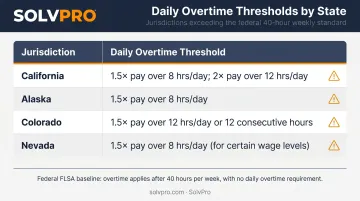
If your crews work across state lines, a single default overtime rule will be wrong for at least some of them.
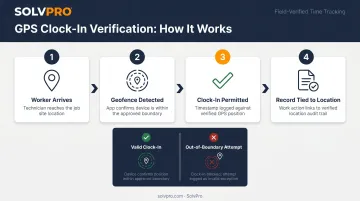
Enable GPS-based clock-in restrictions so workers can only log time when they're physically at the assigned job site. This eliminates punches from home, from the truck two blocks away, or from a different job entirely. SolvPro's event-based geolocation tracking ties each clock-in to a specific work action, creating an auditable record of when and where work actually happened.
Set your time rounding policy explicitly. DOL Fact Sheet #53 describes the federal "7-minute rule": 1–7 minutes may be rounded down, 8–14 minutes must be rounded up. Configure this deliberately. Leaving it unset means the system defaults in ways that may not match your payroll expectations, and a policy that systematically favors the employer in practice can trigger litigation even if it sounds neutral on paper (see Houston v. St. Luke's Health System, 8th Cir., 2023).
Step 3: Assign Roles and Approval Permissions
Give crew leads supervisor-level access so they can view, edit, and approve their team's time cards. Without this, every approval bottlenecks at the office and payroll gets delayed.
Set up a two-step approval workflow:
- Crew lead reviews and approves their team's time cards within 24 hours
- Office admin does a final check before hours push to payroll
This two-step structure is what catches errors before they become paycheck problems. DCAA guidance for government contractors makes this same point: supervisors should approve and cosign all timesheets, and company policy should require accurate, complete preparation.
Restrict workers to employee-level access only — they should be able to clock in, clock out, and view their own hours, but not edit or approve anyone else's time.
Step 4: Onboard Crew Leads First, Then Field Workers
Train crew leads before you roll out to the rest of the team. They need to know what a complete, correct time card looks like before they can review anyone else's.
For field workers, keep training to three things:
- How to clock in
- How to clock out
- What to do if something goes wrong (missed punch, wrong job, no signal)
Complexity kills adoption. If the clock-in process requires more than three taps, workers will find shortcuts — or skip it entirely.
For crews where English isn't the primary language, confirm your platform supports a bilingual interface. SolvPro's Spanish-language mobile app is included across all pricing tiers, which means workers can navigate clock-in, job updates, and status changes without needing a bilingual supervisor on-site.
Step 5: Connect to Payroll and Review the First Two Weeks Closely
Integrate with your payroll or accounting software before the first payroll run. SolvPro's QuickBooks Online sync is built into the core platform at no additional cost — approved labor hours flow directly into QBO without manual re-entry, cutting out the transcription errors that routinely cause payroll corrections.
Run a crew-level labor report at the end of each week and look for:
- Crews consistently showing overtime that wasn't scheduled
- Workers with missing punches
- Job sites where hours don't match what was estimated
The first two weeks of data will surface configuration errors : wrong job codes, missing crew members, incorrect overtime thresholds. Fix them now, not after three pay periods of bad data have stacked up.
When Digital Time Cards Make the Most Sense
This approach pays off fastest when you're managing two or more crews at different locations simultaneously. At that scale, manual tracking creates compounding errors that paper and spreadsheets genuinely cannot contain.
Watch for these operational signals that it's time to switch:
- Payroll consistently takes more than half a day to process
- Crew leads are calling the office to clarify hours
- Job costs routinely come in over estimate without a clear explanation
- You can't tell which job site, crew, or job type is eating into your margin
Businesses with non-standard hours, crews that rotate across multiple sites, or mixed-language teams are especially strong candidates. These are exactly the scenarios where a structured system pays off fastest — and where the absence of one costs the most.The longer these signals go unaddressed, the harder it becomes to trace where time — and money — actually went.
Key Variables That Affect Time Card Accuracy
Even a well-configured system produces bad data if these aren't actively managed.
GPS and Geolocation Settings
Without location verification, workers can clock in from anywhere and the time card records it as valid. Geolocation restrictions tied to specific job site boundaries are what separate digital time cards from digitized paper: the location boundary is the accountability layer.
SolvPro's event-based approach captures location at the moment of a work action — clock-in, photo upload, job update — so every time entry ties to verifiable field activity, not just a device's approximate position during the day.
Crew Lead Approval Workflow
The approval step is the last human checkpoint before hours go to payroll. If crew leads skip it, approve without reviewing, or aren't trained on what to look for, errors pass through unchecked. A required, consistent approval at the crew level means problems surface within 24 hours — not after payroll has already run.
Job Site and Cost Code Tagging
When workers clock in without tagging the correct job site, hours go into a general bucket. Without accurate tagging, you lose the ability to:
- See labor cost broken down by job
- Compare actuals to original estimates
- Build better bids from real historical data
SolvPro's job-level labor reporting ties time entries directly to specific work orders, so managers can see exactly what each site costs versus what was estimated.
Overtime Rule Configuration
Field service businesses operating across multiple states face different daily overtime thresholds by location. One default rule applied across all crews will be non-compliant somewhere. Site-specific or crew-specific overtime rules protect against both underpayment risk and overpayment errors.
Common Mistakes When Managing Multiple Crews With Digital Time Cards
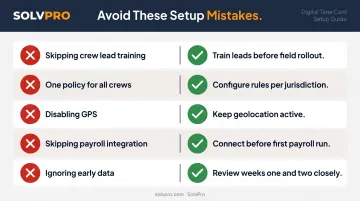
Most problems with digital time cards aren't technical — they're setup and process mistakes that compound over time. Watch for these:
- Train crew leads first. Rolling out the platform to workers before leads understand the approval workflow almost always results in incomplete or late submissions.
- Don't use one policy for all crews. Different jurisdictions, job types, and labor classifications require different rules — a blanket policy creates compliance gaps.
- Disabling GPS to simplify rollout removes the accountability layer that makes digital time cards better than paper. It's the most common shortcut that kills the whole system.
- Skipping the payroll integration means approved hours still require manual re-entry — you've cut half the work and kept all the transcription error risk.
- Review the first two weeks of data closely. Configuration issues always surface early; catching them in weeks one and two stops them from repeating every pay period.
Frequently Asked Questions
What is the 7-minute rule for employees?
The 7-minute rule is a federal payroll rounding guideline (29 CFR 785.48) that lets employers round clock-in/out times to the nearest quarter hour — down for 1–7 minutes, up for 8–14 minutes. Digital time card platforms can apply this automatically, provided the policy is applied consistently and never systematically undercompensates workers.
Are time card apps compliant with labor laws?
Reputable time card platforms are built to support FLSA compliance — recording required data, applying overtime thresholds, and retaining records for the required periods (3 years for payroll records, 2 years for time cards per DOL Fact Sheet #21). Compliance still depends on how the platform is configured, particularly for multi-state operations where overtime and break rules vary by jurisdiction.
What app tracks work hours and pay together?
Several field service management platforms handle both time tracking and payroll in one system. SolvPro, for example, combines digital time cards with job-level labor reporting and QuickBooks Online sync included on every plan — so clock-in data flows directly into payroll without a separate import step.
Can crew members clock in without a personal smartphone?
Most platforms support shared tablet or kiosk-mode clock-in, where the whole crew uses a single device at the job site. GPS location and job tagging work the same as individual device clock-ins.
How do digital time cards work when there's no internet on the job site?
Many platforms support offline clock-in — time entries are stored locally on the device and synced to the cloud once connectivity is restored. This ensures no hours are lost on remote or underground job sites. Confirm offline support with your vendor before deploying to low-signal environments.
How do I track labor costs separately for each crew or job site?
This is done through job site tagging at clock-in. When workers select the correct job or work order before logging hours, the system groups labor costs by site automatically. SolvPro's job costing tools let managers see actual vs. estimated hours per job in real time and export that data directly to QuickBooks for payroll and financial reporting.