Missed jobs don't get caught until a client calls. Invoices go out days late because no one confirmed the job was done. Crews call the office asking for information that should already be in their hands. The volume of coordination doesn't scale the way the business does.
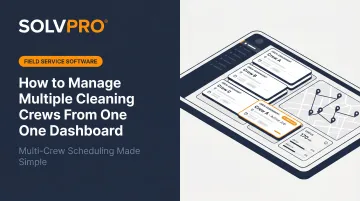
Managing all crews from one centralized dashboard solves this — but only when it's set up correctly. This article walks through the exact steps to build that setup, the features that make it work, when it becomes truly necessary, and the mistakes that cause it to fall apart.
KEY TAKEAWAYS
- Build crew profiles, job templates, and tracking before going live — each step depends on the one before it
- Connect job completion to invoicing; that's where the biggest operational gains actually show up
- Mobile access for field crews isn't optional — a desk-only dashboard just creates new gaps
- Dashboard ROI is highest when missed jobs, crew confusion, and slow payments are already hurting you
- Schedule, track, communicate, close, and invoice from one system — broken workflows cost more than bad tools
How to Set up Multi-Crew Management from One Dashboard
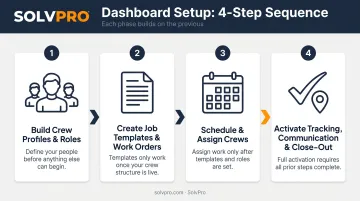
The setup process has four distinct phases. Each one depends on what was configured in the previous step — which means the order matters.
Step 1: Build Crew Profiles and Define Roles
Create individual profiles for every crew member and lead within the platform. Include contact information and assign each person the correct role. Role-based permissions matter here: office managers, crew leads, and individual cleaners should each see only what's relevant to their function.
When a crew member's role is set incorrectly, they either see too much or miss critical job details entirely. Both create problems.
For cleaning businesses with bilingual teams, this step is where language support becomes an immediate operational factor. According to BLS data, 40% of workers in building and grounds cleaning occupations identify as Hispanic or Latino — and ISSA estimates the Latino workforce represents 70% of the cleaning industry.
SolvPro's fully bilingual English/Spanish interface means crew profiles and job details are readable by both English- and Spanish-speaking staff without a separate translation step. That removes a common source of miscommunication between office and field right at the point of setup.
Step 2: Create Standardized Job Templates and Work Orders
Build reusable job configurations for each site type. Templates eliminate re-entering recurring job details and ensure every crew gets consistent information regardless of who schedules the job. Each template should include:
- Scope of work for that site
- Location details and access instructions
- Site-specific client requirements
- Task-level guidance for that location
Work orders generated from these templates should attach to specific client records and locations. That connection is what lets the dashboard surface full job history during scheduling — not just what's currently assigned, but what's been done before at that site.
In SolvPro, recurring job management is a core feature included on the core plan. Once a job is configured, it carries forward all relevant details — instructions, crew assignments, site notes — automatically for each cycle.
Step 3: Schedule Jobs and Assign to the Right Crew
Use the dashboard's scheduling view to select the job, set the date and time window, and assign to the correct crew or crew lead. The critical capability here is seeing all crews' schedules simultaneously — not just one at a time.
Without that cross-knowing where crews are assigned, scheduling decisions get made with incomplete information — which is where double-booking and over-assignment happen.
SolvPro's drag-and-drop calendar offers day, week, and crew views. The crew view in particular shows availability and assignments across every team simultaneously, so conflicts and gaps are visible before they become problems. Recurring jobs — daily, weekly, biweekly commercial contracts — populate automatically without manual re-entry each cycle.
Step 4: Activate Tracking, Communication, and Job Close-Out
Once crews are in the field, the dashboard's value shifts from scheduling to visibility. Enable event-based location tracking so managers can confirm crew arrival and departure without calling.
SolvPro records time by job and by crew member. When crews update job status, upload photos, or log time, those actions are timestamped against the job. Managers see which jobs are active, delayed, or complete in real time from the dashboard.
Communication should stay inside the platform. Office teams can push location-specific instructions and updates to crews. From the mobile app, crews can log directly into the job record without stepping outside the system:
- Add notes or photos at job completion
- Flag access problems or damage found on-site
- Report supply shortages before the next visit
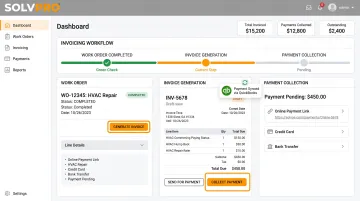
Job close-out is where the workflow proves its worth. When a crew marks a job complete in SolvPro, the office is immediately notified and can generate an invoice directly from the completed work order. Crews can also capture customer sign-off and collect payment on-site. That data then syncs to QuickBooks Online automatically — no manual reconciliation.
When Does a Single Dashboard Become Necessary?
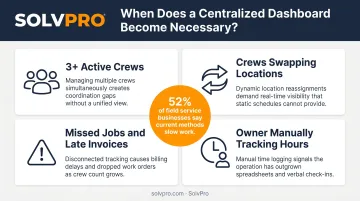
A centralized dashboard isn't just useful at scale — it becomes operationally necessary at a specific growth stage.
The common trigger points:
- Managing three or more active crews simultaneously across different sites
- Running jobs where crews swap locations or cover for one another
- Experiencing repeated missed jobs, late invoices, or crews calling the office for information they should already have
- The owner or manager spending hours each week manually tracking who is where and whether jobs were completed
According to Software Advice's 2026 field service buyer research, 52% of field service software buyers said their current methods slow work or create inefficiencies — based on over 3,000 interactions with businesses evaluating FSM software. A centralized dashboard exists precisely to close that gap.
The operations that see the most immediate impact:
- Commercial cleaning contracts running recurring schedules across multiple sites
- Teams that rotate or substitute crews across jobs week to week
- Operations where invoices lag days behind job completion instead of going out the same day
That said, a dashboard works best when the setup underneath it is solid. If jobs aren't templated, crew profiles are incomplete, or field crews don't have mobile access, you're left with a scheduling view — not a management system. The coordination and accountability problems don't disappear on their own.
Key Dashboard Features That Make Multi-Crew Management Work
Not all field service platforms are built for cleaning operations. The features below are what separate a full crew management system from a calendar with a mobile app.
Unified Schedule View Across All Crews
Managers need to see every crew's schedule — by crew, by location, or by day — in one view. This view should update in real time as jobs are added, modified, or completed. Without it, managers make scheduling decisions without knowing the full picture.
Real-Time Location and Job Status Tracking
Job and crew time tracking ties a location record to specific crew actions: clocking in at a job site, updating status, uploading photos, clocking out. Managers can verify that crews arrived, started, and completed jobs at the correct location and time.
ISSA reported that Janitorial Manager's QR-code proof-of-service feature had logged over 2.2 million scans — a clear signal that digital proof-of-service is already standard practice in professional cleaning operations.
Work Orders with Photo Documentation
Work orders give crews structured, site-specific instructions. Photo documentation — before/after photos uploaded from the mobile app — attaches directly to the work order and creates a verifiable proof-of-work record. Every photo is tied to the job and timestamped, making it easy to verify if a client questions whether work was completed.
Centralized Communication with Language Support
Keeping all field communication inside the platform eliminates the scattered text threads, WhatsApp messages, and emails that make accountability impossible. For cleaning businesses with bilingual crews, platform language support is an operational requirement, not a preference.
SolvPro offers a fully bilingual English/Spanish interface for both office and field users, included on the core plan at no additional cost. The platform has a dedicated in-house translator on staff. When crew leads receive instructions in their preferred language, the office skips the translation step entirely.
Invoicing Triggered by Job Completion
Jobber's 2026 Home Service Trends Report found that cleaning businesses have the highest same-day payment rate at 60% — and that rate depends on invoicing being connected to job completion, not handled as a separate process later.
When a job is marked complete, office teams can generate an invoice immediately from the completed work order. Payment collection happens on-site, with the transaction syncing to QuickBooks Online automatically. Built-in features that support same-day payment include:
- Credit card, ACH, and digital payment collection in the field
- credit-card and ACH payments included at no additional cost
- Automatic QuickBooks Online sync on every transaction
Common Mistakes When Managing Multiple Crews from One Dashboard
Most of these mistakes happen during setup — or from habits that carry over from managing crews without a system. Catch them early and you'll get full value from the dashboard on day one.
Using the dashboard only for scheduling. Most of the operational value comes from what happens after the job is scheduled — tracking arrival, confirming completion, and closing out payment. Teams that stop at scheduling still manage most of the job manually.
Not completing crew profiles before going live. Assigning jobs to profiles with missing contact information, wrong role settings, or no location permissions breaks notification and communication workflows immediately. Crews don't receive assignments, or receive assignments meant for a different site.
Skipping mobile setup for field crews. A dashboard that crews can't access from their phones defaults back to the office calling and texting for every update. The mobile app is where check-ins, photo uploads, and job close-outs happen — and without it, none of that reaches the dashboard.
Treating all crews as interchangeable. Assigning jobs without accounting for crew location, travel time between sites, workload balance, and site-specific knowledge recreates the same scheduling problems the dashboard was supposed to solve. Better visibility only helps when managers act on it — the tool doesn't make assignment decisions for you.
Conclusion
Managing multiple cleaning crews from one dashboard works when the full workflow is connected: profiles set up correctly, jobs templated, scheduling visible across all crews, field tracking active, and invoicing triggered at job completion — not handled separately later.
The most common failure point is partial implementation. Two patterns show up repeatedly:
- Scheduling is configured, but field tracking is never turned on
- Crews are assigned jobs before anyone walks them through the mobile app
When either piece is missing, the dashboard can only show you what you've actually connected to it.
SolvPro covers the full workflow in one platform — scheduling, crew tracking, bilingual communication, and invoicing — with setup under 10 minutes and live onboarding support included. No extra cost, no long-term contract.
You shouldn't have to wait until the job is over to find out whether you made money.
Keeping the estimate, work order, time entries and invoice on one record reduces how much the office has to reconstruct before it can bill. That is the difference between finding out now and finding out at closeout. When you want to see it on your kind of work, Book a Demo.
Run the Job. Protect the Profit.
Frequently Asked Questions
How Many Cleaning Crews Do You Need before a Dashboard Is Worth Setting up?
The coordination breaking point tends to arrive as the number of active crews grows, especially when jobs run concurrently across different sites. At that scale, seeing where all crews stand stops being optional.
Can Cleaning Crew Members Access the Dashboard from Their Phones in the Field?
Yes — mobile access is a core requirement for the system to function. Crew check-ins, photo uploads, checklist completion, job close-out, and communication all happen from the field.
What Is the Difference Between Scheduling Software and a Full Crew Management Dashboard?
Scheduling software handles job assignment. A full crew management dashboard also covers real-time tracking, centralized communication, work order and photo documentation, and invoicing — all in one workflow.
How Do You Handle Last-Minute Crew Changes or No-Shows from a Dashboard?
A centralized dashboard lets managers reassign jobs to available crew members in seconds, push updated job details to the replacement crew's mobile device, and log the change in the job record without disrupting the rest of the day's schedule.
How Do You Confirm That a Cleaning Crew Actually Completed the Job?
Event-based check-in/check-out tracking, crew-uploaded completion photos, and a completed work order checklist together form the standard proof-of-work record. In SolvPro, all of these entries are timestamped against the job.
Does a Crew Management Dashboard Work for Both Commercial and Residential Cleaning Operations?
Yes — the core features apply to both. Commercial operations with recurring contracts across multiple sites tend to see the largest efficiency gains, since repeat scheduling, consistent checklists, and invoice-to-completion workflows run at higher volume and with more structure.