
If this sounds familiar, you're not managing your business wrong. You're just running a field service operation. A 2025 Salesforce survey of U.S. field technicians found that 47% of appointments didn't go according to schedule, and 38% said schedules were often mishandled because of miscommunication, missing parts, or poorly estimated job length, according to Salesforce's field service research.
This article walks through exactly what to do the moment a change hits, what needs to be in place before it happens, the factors that determine how fast you recover, common mistakes to avoid, and how to cut down on how often this chaos repeats.
KEY TAKEAWAYS
- Log every change immediately and assess its ripple effect before reacting
- Real-time knowing where crews are assigned is the single biggest factor in fast recovery
- Delayed communication causes more damage than the change itself
- Buffers and a backup technician list absorb disruptions before they cascade
- The right software turns a scramble into a few clicks
How to Handle Last-Minute Schedule Changes in Field Service (Step-by-Step)
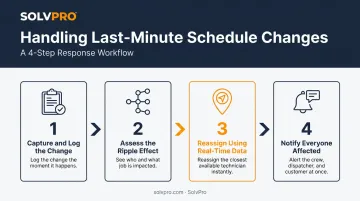
Step 1: Capture and Log the Change Immediately
The instant a customer calls or a technician texts, get it into your scheduling system. Not a sticky note. Not a group chat you'll scroll through later.
Record:
- Who contacted you and when
- What's changing (time, date, or scope)
- Why it's happening
- The customer's preferred new window
Then classify it. A reschedule, a cancellation, and an emergency add-on each demand a different response, so treating them the same way is how jobs fall through the cracks. Timestamp the entry too, since it protects you on billing disputes and gives you real data for spotting patterns later.
Step 2: Assess the Ripple Effect on Today's Schedule
Before you touch anything, figure out exactly what's affected. Which technician? Which route? Which downstream appointments now shift because of this one change?
Check three things:
- Live crew availability: not the printed schedule from this morning
- Current job status: is someone already running behind on the prior stop?
- Travel distance: who's actually close enough to absorb this without blowing up their own route?
Flag any appointments tied to strict time windows or service-level commitments first. Those get protected before you start moving other pieces around.
Step 3: Reassign or Reschedule Using Real-Time Data
This is where a static whiteboard or spreadsheet falls apart, and where live data earns its keep. A map-based scheduling view shows you which qualified technician is physically closest and actually free, not who you assume is closest based on this morning's plan.
SolvPro's job and crew time tracking gives dispatchers this exact picture: instead of calling three technicians to find out who's near the customer's address, you glance at the map and see it instantly. What used to take a round of phone calls now takes a few clicks.
Before locking in the reassignment, confirm the new technician has:
- The right skills or certifications for the job
- Any tools or parts the work requires
- Enough time in their route to get there without stacking delays
Step 4: Notify Everyone Affected Right Away
The reassignment isn't done until the right people know about it. Three groups need an update, fast:
- The customer: new arrival time or date, sent via text, email, or app notification
- The reassigned technician: updated address, job details, and any special instructions before they leave their current stop
- The office record: so invoicing, job notes, and profitability tracking reflect what actually happened, not what was originally planned
Skip any one of these and you're setting up tomorrow's headache today.
What You Need before You Can Handle Changes Smoothly
How well your team absorbs a disruption depends almost entirely on what's already in place before it hits. Scrambling to build a system mid-crisis rarely works.
Here's what needs to exist beforehand:
- A centralized scheduling platform both office staff and field crews can view and update in real time. SolvPro brings scheduling, work orders, and crew tracking into one view instead of scattered spreadsheets, texts, and paper job sheets.
- A mobile app crews actually use. If technicians can see updates, confirm new jobs, and message the office without calling in, half of your daily fire drills disappear on their own.
- Predefined escalation rules. Decide in advance who approves rush jobs, who signs off on overtime, and who reshuffles routes, so nobody waits on an answer while a customer holds.
Skip any of these pieces, and every schedule change turns into an improvised negotiation instead of a routine response.
Key Factors That Affect How Well You Manage Schedule Changes
Some businesses recover from a mid-morning cancellation in ten minutes. Others lose the whole afternoon. The difference usually comes down to a handful of variables you can actually control.
Knowing Where Each Crew Is Working
Knowing exactly where each technician is and what job they're on lets a dispatcher reassign in minutes instead of making four phone calls to figure out who's free. Faster reassignment means fewer missed windows and less idle drive time burning through the day.
Built-In Schedule Buffer Time
Padding routes with extra minutes per stop gives you room to absorb small delays before they cascade into a missed appointment three jobs later. The right buffer depends on your job types and travel density, but even a modest cushion changes how a disruptive day feels for your crew.
Skill and Certification Matching
Reassigning a job to whoever's simply available, without checking whether they're qualified, creates callbacks and eats into your first-time fix rate. Field Nation notes that a generalist sent to specialized equipment, or a technician without required site certifications, is unlikely to solve the problem on the first visit.
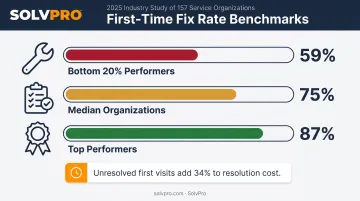
That gap shows up in the numbers. Aquant's 2025 benchmark study found the median first-time fix rate across 157 service organizations was 75%, with top performers hitting 87% and the bottom 20% falling to 59%. Unresolved first visits added 34% to resolution cost on average.
Communication Speed to Customer and Crew
Most of the chaos from a schedule change doesn't come from the change itself. It comes from how long it takes everyone to find out about it.
The same Salesforce survey referenced earlier found technicians report averaging 17 minutes to make an appointment, 14 minutes to change one, and 12 minutes to cancel one. Automated, instant notifications compress that timeline dramatically and cut down on no-shows tied to a customer never getting the memo.
Common Mistakes to Avoid When Handling Schedule Changes
A few habits cause more damage than the disruptions themselves:
- Relying on phone calls and paper schedules to track changes creates version confusion, leaving no clear "real" schedule for office or field.
- Reassigning jobs without checking skills, parts, or travel distance leads to callbacks and wasted trips that cost more than the job was worth.
- Failing to notify the customer promptly means a technician shows up late, or not at all, which costs you repeat business.
- Skipping the work order or invoice update causes billing errors and skews your job profitability data for months.
Each of these mistakes stems from disconnected systems: phone calls in one place, paper schedules in another, invoices updated separately. A platform like SolvPro fixes the root cause, updating the schedule once so it syncs automatically across office, field, and invoice.
How to Minimize Future Changes and Handle Cancellations the Right Way
You can't eliminate last-minute changes. You can reduce how often they happen and how much damage each one does.
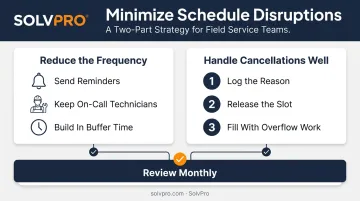
Reduce the frequency:
- Send appointment confirmations and reminders in the day or two before service, giving customers a chance to flag a conflict before it becomes a same-day scramble
- Keep a short list of on-call or flexible technicians who can absorb overflow work the moment someone cancels
- Build in buffer time between back-to-back jobs so one delay doesn't cascade into the next appointment
Handle cancellations well when they happen:
- Log the reason immediately — patterns matter more than any single cancellation
- Release the time slot right away for rebooking
- Use that gap to fit in overflow or waitlisted work instead of losing the revenue outright
Review the pattern monthly. Look at which routes, time slots, or customers generate repeat cancellations or reschedules. If one commercial account cancels every third Tuesday, that's worth a conversation, not just another reshuffled schedule.
Conclusion
Field service software helps you manage the work. SolvPro helps you make sure the work makes money.
The right tool depends on your trade, crew size, job mix and the systems you already run. Test it on real jobs before you commit, and check that crews will actually enter what the office needs. When you want to see it on your kind of work, Book a Demo.
Run the Job. Protect the Profit.
Frequently Asked Questions
How Do I Handle Last-Minute Schedule Changes in Field Service Software?
Log the change immediately, check real-time crew availability, and reassign using the software's live scheduling view. Then trigger automatic notifications to both the customer and the newly assigned technician.
How Can I Minimize or Control Last-Minute Changes to Schedules in Field Service Software?
Send automated appointment confirmations before the job, build schedule buffers into technician routes, and set up conflict alerts before jobs even reach the field. Small habits upfront prevent bigger scrambles later.
How Should I Handle Cancellations in Field Service Software?
Log the cancellation reason right away, then release the time slot immediately. Automated workflows can then offer that slot to other customers or overflow jobs, so the revenue isn't lost.
What's the Best Way to Notify Customers About a Schedule Change?
Automated text, email, or app notifications sent the moment a change is confirmed work better than phone calls because they're instant and create a written record. No one's stuck waiting for a callback.
How Much Buffer Time Should I Build into Technician Schedules?
It depends on job type and travel density in your service area, but 15 to 30 minutes per stop is a solid starting point. Track how often routes run long over a few weeks, then adjust the cushion up or down based on that data.
Can Field Service Software Automatically Reassign Jobs When a Technician Cancels?
Modern platforms like SolvPro, which combine real-time location and crew data, make it fast for a dispatcher to identify the nearest qualified, available technician and reassign in a few clicks rather than a round of phone calls.