Small field service business owners — HVAC companies, plumbers, landscapers, electrical contractors — often spend their first week troubleshooting their new platform instead of using it. Crews showing up without job details. Invoices not syncing to QuickBooks. Double bookings that somehow survived the switch from spreadsheets.
According to Software Advice, 52% of field service software buyers cited operational inefficiency as their primary pain point — and 35% were still managing jobs manually with spreadsheets before switching. The software isn't the problem. The missing ingredient is a setup process that actually accounts for how field service businesses work.
That's what white-glove setup solves. This guide walks through the full configuration process: what to prepare, how to set up each layer in the right sequence, and how to validate everything before your crew goes live.
Key Takeaways:
- Gather service types, crew rosters, and integration credentials before opening the software
- Follow a defined setup sequence — business profile first, integrations after
- Set crew permissions correctly from day one to prevent accidental job changes
- Run a full practice job before going live to catch errors before they hit real customers
- Most post-setup problems fall into three fixable categories: double bookings, permission errors, and sync failures
What "White-Glove Setup" Actually Means for Field Service Businesses
Self-serve setup means clicking through a wizard, watching a tutorial video, and hoping it all makes sense. White-glove setup means someone — or a structured guided process — walks you through configuration that's specific to your business.
For appointment-based businesses like salons or consultants, self-serve often works fine. The job types are simple, the scheduling is linear, and there are no mobile crews to coordinate.
Field service businesses are a different situation entirely. You're managing multiple technicians across different job sites, geographic zones, and real-time dispatching decisions.
Capterra's field service feature research found that 80% of field service software reviewers rated calendar management as highly important specifically to prevent manual errors like overbooking. That's the majority of buyers putting scheduling accuracy at the top of their list — before features, before price.
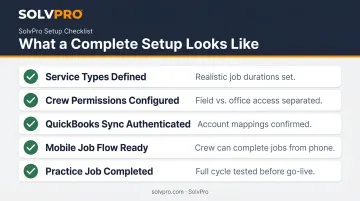
A properly completed white-glove setup looks like this at the finish line:
- Every service type is defined with a realistic job duration
- Every crew member has the correct access level — field crew see their jobs, office staff manage the schedule
- QuickBooks Online sync is authenticated and account mappings are confirmed
- The crew can start, complete, and close a job from their phone without calling the office
- At least one practice job has completed the full cycle before day one
That finish line only happens with proper guidance. SolvPro gives new customers real onboarding support — a live team walking through setup — rather than a 40-page knowledge base and a chatbot. For businesses that want a deeper walkthrough, a Demo and Discovery session with the SolvPro team covers platform configuration specific to your crew structure and job types.
Before You Begin: What to Have Ready
Starting setup without the right information doesn't save time. It creates guesses that become errors.
Business Information to Gather
Before opening any configuration screen, have these items written down:
- All service types your business offers, with realistic job durations (include travel buffer)
- Full crew roster — names, roles (field tech vs. crew lead vs. office), and contact information
- Standard working hours for each crew member or team
- Service area — zip codes, cities, or geographic radius
- Recurring job schedules — which clients have weekly, biweekly, or monthly contracts
Capterra's implementation research found that successful software adopters were nearly twice as likely to create a formal implementation plan (55% vs. 29% among buyers who struggled). The pattern holds: businesses that prepare before setup have fewer problems after it.
Technical and Integration Checklist
- Confirm crew members' mobile devices can access the mobile app
- Have QuickBooks Online login credentials ready if you're syncing accounting
- Confirm your NMI payment processing account is active and accessible
- Resolve any QuickBooks account issues before starting — an unresolved account status will block authentication mid-setup
These preparation steps directly address the three most common implementation disruptions across software buyers: integration issues (40%), data migration problems (38%), and project delays (38%). All three are preventable before you touch a single configuration screen.
How to Set Up Scheduling Software for Your Field Service Business
Setup follows a sequence. Skipping steps — especially connecting integrations before the business profile is complete — creates errors that compound after go-live.
Step 1: Configure Your Business Profile and Service Catalog
Start with the foundation: business name, working hours, and service area. Then build your service catalog — every job type your crew performs.
Job duration is the most under-configured field in this step. Owners typically enter a round number (2 hours) without accounting for travel time, setup, or cleanup. The system then shows false availability, and double bookings follow.
For each service type, ask:
- What's the realistic door-to-door time for this job?
- Does this job vary in length based on job size or location?
- Are there any recurring versions of this job that need their own template?
SolvPro's Custom Work Type Configuration lets you define service types that match your specific operations — whether that's a commercial HVAC inspection, a weekly landscaping contract, or a one-time deep clean. These work types become the backbone of everything that follows: scheduling, invoicing, and QuickBooks account mapping.
Step 2: Add Your Team and Set Correct Permissions
Add each crew member with their correct role. Get this wrong, and you'll spend time later chasing down changed jobs and unexplained data edits.
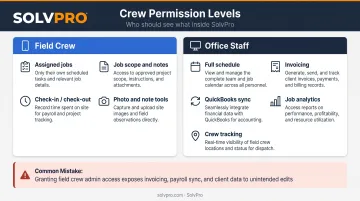
Field crew should see:
- Their assigned jobs for the day
- Job scope, notes, and site-specific instructions
- Check-in/check-out functions
- Photo upload and note-adding tools
Office staff should see everything — the full schedule, invoicing, QuickBooks sync, job analytics, and crew tracking.
The most common mistake here: granting field crew admin or office-level access by default. They can then accidentally change jobs, view financial data, or alter schedules — creating problems that are hard to trace back to their source.
SolvPro's crew-level permissions are built specifically for this separation. Field crew get a focused mobile experience. Office staff manage the full picture. For businesses with crew leads or foremen, there's room to configure an intermediate level with more field authority.
Step 3: Connect Your Integrations
With the business profile and team in place, authenticate your integrations — in this order:
- QuickBooks Online — Connect the account, then complete account mapping. Link each service type to the correct income account in your chart of accounts. Don't skip the mapping step; this is what causes invoices to appear in QuickBooks with wrong classifications.
- NMI payment processing — Connect and run a test transaction. Confirm the payment record shows correctly before processing any real customer payments.
Finish each integration completely before starting the next. A partially authenticated connection won't throw an error — it just silently fails when your first invoice tries to sync.
QuickBooks Online's OAuth access tokens expire after 3,600 seconds. If you start the authentication process and walk away, you'll return to an expired session and need to restart. Complete the authentication in one sitting.
Step 4: Configure Notifications and Automations
Notifications are what turn scheduling software into an actual communication system. Without them, your crew is still waiting on phone calls to know where to go — and the software is just doing invisible work nobody sees.
Set up:
- Crew job alerts — assignment notifications and day-of reminders
- Customer confirmations — if your business sends appointment confirmation messages
- Office alerts — new bookings, job completions, and flagged issues
When notifications aren't configured, two systems run in parallel — the software and the old manual process. They drift apart fast, and jobs fall through the gap.
Step 5: Run a Practice Job Before Going Live
A practice run before go-live is what catches problems before they hit a real customer job.
Create a sample job, assign it to a crew member, and have that person complete the full mobile experience on their actual device:
- Log in and view the assigned job
- Navigate to the job location and check in
- Add a photo and a note
- Mark the job complete
- Trigger an invoice from the office side
- Confirm the invoice appears in QuickBooks with the correct account classification
Any friction found here — a crew member who can't log in, an invoice that doesn't pass through, a notification that never fires — resolve it now, not during a live customer job.
Post-Setup Validation: Confirming Everything Works Before Day One
Many issues only surface under real conditions. The validation process below is designed to catch those issues before they affect a paying customer.
Crew-Side Validation
Have at least one field crew member run through the complete mobile experience:
- Log in on their actual device (not yours)
- View an assigned job
- Check in at the job site
- Add a note and a photo
- Mark the job complete
Any login issues, permission errors, or app version conflicts need to be resolved before this person goes to their first real job.
With crew access confirmed, the next step is verifying that your back-office connections hold up end to end.
Integration Validation
- Verify the practice job invoice appears in QuickBooks with the correct income account classification
- Run a nominal test payment through NMI and confirm the record syncs
- If the invoice doesn't appear, check whether the QuickBooks OAuth session is still valid — sessions can expire if you completed setup across multiple sittings
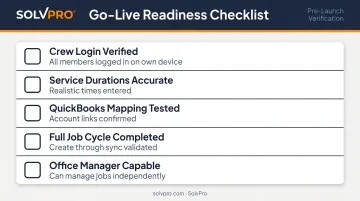
Go-Live Readiness Checklist
Before dispatching the first real job, confirm:
- All crew members have logged in at least once on their own device
- All service types are defined with accurate durations
- QuickBooks account mapping is complete and tested
- At least one full job cycle has been completed (create → assign → complete → invoice → sync)
- The office manager can create, assign, and close a job without support
Common Scheduling Software Setup Problems and Fixes
Most problems fall into three predictable categories. All are fixable — but only if caught during validation rather than on a live job.
Issue 1: Double-Booked or Conflicting Jobs
Two jobs get assigned to the same technician at the same time, or a job lands outside a crew member's available hours. This usually means availability windows weren't defined during team setup — or job durations are set shorter than the work actually takes.
Return to crew profile settings and define accurate hours for each team member. Review and correct job durations in the service catalog to include realistic travel time.
Issue 2: Field Crew Cannot Access Jobs on Their Device
A crew member logs in but can't see their assigned jobs, or the app asks for credentials they don't have. Nine times out of ten, the user was assigned an office or admin role instead of a field crew role during setup — or their app version is out of date.
Go to user management settings and reassign them to the correct field role. Confirm the latest app version is installed before their first job.
Issue 3: QuickBooks Sync Not Passing Invoice Data
Jobs are completed and invoices are generated, but nothing shows up in QuickBooks — or entries appear with wrong account classifications. This happens when the account mapping step was skipped or incomplete, or when the OAuth session expired before the connection was fully confirmed. Two common API errors signal this: HTTP 401 (expired token) and Authorization Failure code 120 (the connecting user lacks admin permissions).
Navigate to integration settings, disconnect and re-authenticate the QuickBooks connection, then complete account mapping by linking each service type to the correct income account. Test with a fresh invoice before going live.
Pro Tips for a Faster, Smoother Setup
Don't go live on a Monday. Schedule your go-live for mid-week, after completing the practice job validation on a lower-stakes day. A failed job on Monday morning happens in front of a paying customer.
Involve one crew member before rollout. Have a tech-comfortable field employee test the mobile experience during the practice job phase. This person becomes the go-to resource for crew questions during the first week — and significantly reduces "how do I use this?" calls to the office.
Account for language. Hispanic workers represent 34% of the US construction workforce and 61% of the landscaping workforce is Hispanic, Latino, or Spanish origin. If your crew is more comfortable in Spanish, choosing a platform with a fully bilingual interface removes a real adoption barrier from day one. SolvPro includes a complete English/Spanish mobile experience across all plans — translated by an in-house specialist, not a machine — at no added cost.
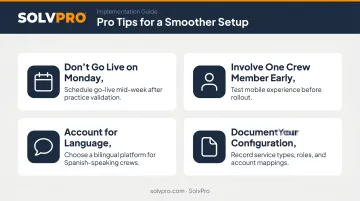
Document your configuration decisions. Once your language and interface setup is confirmed, keep a simple record of which service types were created, which roles were assigned, and how QuickBooks accounts were mapped. That reference becomes essential when auditing a problem later — and cuts onboarding time for new crew members considerably.
Frequently Asked Questions
What is the best scheduling software for small businesses?
The right choice depends on your business type. Field service businesses (HVAC, plumbing, landscaping, electrical) need crew dispatching, work orders, mobile job management, and accounting integration — features general scheduling tools designed for salons or consultants simply don't include. Purpose-built field service platforms like SolvPro are built specifically for businesses with crews in the field.
What is replacing Microsoft Bookings?
Microsoft Bookings handles appointment scheduling but was never built for field service dispatching, work orders, or QuickBooks sync. Field service businesses moving away from Bookings are choosing purpose-built FSM platforms that manage the full job lifecycle — scheduling, dispatch, invoicing, and payment collection — in one system.
How long does it take to set up scheduling software for a small field service business?
Self-serve setup can take days of trial and error. A white-glove setup with a purpose-built platform like SolvPro can be completed in under an hour when service types, crew roster, and integration credentials are prepared in advance.
What information do I need before setting up scheduling software?
You need: a list of all service types with realistic job durations, the names and roles of all crew members, standard working hours and service area, and login credentials for QuickBooks Online or whichever accounting tool you're integrating.
Can field crew with limited tech experience use scheduling software?
Yes, provided the software is configured correctly. Crew role permissions limit what they see, the interface should be mobile-friendly, and a brief walkthrough before the first live job goes a long way. A fully bilingual platform removes language barriers for Spanish-speaking crew members.
What's the difference between white-glove onboarding and self-service setup?
Self-service means following documentation or tutorial videos on your own. White-glove onboarding involves a live person walking through configuration with you, catching errors in real time, and confirming the system works before day one. SolvPro provides live onboarding support with every plan, not just at higher pricing tiers.