That's the trap. A healthy revenue number at the top of your P&L can hide a job that bled $3,000 in labor overruns. Electricians, plumbers, HVAC techs, landscaping crews — anyone juggling multiple projects needs profitability broken down job by job, not just company-wide totals.
QuickBooks wasn't purpose-built for this. It's accounting software first, and job costing gets bolted on through sub-customers, classes and locations, or the Projects feature. Which method you pick, and how carefully you set it up, determines whether your reports are useful or misleading.
This guide covers exactly how to set up job costing in QuickBooks, breaks down the three native methods in QuickBooks Online, flags when the built-in tools start to strain, and looks at where dedicated field service software fills the gaps.
Key Takeaways
- QuickBooks Online supports three job costing paths: sub-customers, classes/locations, and Projects
- Accuracy depends on tagging every bill, expense, and timesheet entry to the right job
- Native tools handle simple project structures well but strain with multi-crew, real-time demands
- Syncing QuickBooks with a field platform like SolvPro closes data-entry gaps fast
- Weekly report reviews catch cost overruns before they become permanent losses
How to Set Up Job Costing in QuickBooks
Setup steps differ slightly between QuickBooks Online (QBO) and QuickBooks Desktop (QBD), but the underlying discipline is identical: create a job, code every cost against it, and check the numbers often.
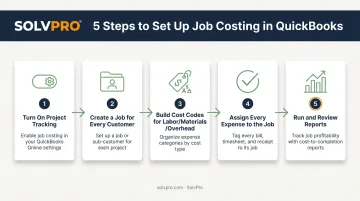
Step 1: Turn On Job Costing / Project Tracking
In QBO, go to Settings > Advanced and turn on "Organize all job-related activity in one place" to enable Projects. In QBD, it's Edit > Preferences > Jobs & Estimates > Company Preferences.
One catch: Projects isn't available on every QBO tier. Intuit's current plan comparison places project-profitability organization under Plus, with Advanced including everything Plus offers. Simple Start doesn't get it at all.
Step 2: Create a Job or Project for Every Customer Engagement
Set up a sub-customer or Project tied to the parent customer, using a distinct identifier, such as a job number, a property address, or whatever keeps records unambiguous. Add start and end dates, a job type, and a budgeted estimate while you're at it. Skip the estimate and you lose the ability to compare actual costs against plan later.
Step 3: Build Cost Codes for Labor, Materials, and Overhead
Create Products & Services items to represent your cost codes:
- Labor
- Materials
- Subcontractor costs
- Equipment
Enable the "I purchase this product/service from a vendor" option on each one. This lets QuickBooks track both the cost side and the revenue side against the same item, which is what makes job profitability reports actually mean something.
Step 4: Assign Every Expense, Bill, and Timesheet to the Job
Every bill, check, expense, and timesheet entry needs the correct job selected in the Customer/Project column. No exceptions.
Missed allocations, even small ones, are the leading cause of bad job cost reports. A $40 supply run that never gets coded to the job doesn't just disappear; it quietly makes that job look more profitable than it was.
Step 5: Run and Review Job Costing Reports
In QBO, head to Projects > Project Reports > Project Profitability. In QBD, it's Reports > Jobs, Time & Mileage. Intuit's own guidance on project profitability reports confirms these pull directly from assigned transactions — meaning garbage in, garbage out.
Compare actual costs to your original estimate regularly, not just when the job wraps.
3 Methods for Job Costing in QuickBooks Online
QBO doesn't have one dedicated job costing button. Instead, three separate tools do the job, and picking the wrong one for your business is the most common setup mistake we see.
| Method | How It Works | Best For |
|---|---|---|
| Sub-customers | Each project is a sub-customer under the parent account; "Bill with parent" rolls invoices up automatically | Income by Customer Summary reports with no extra setup |
| Classes & Locations | Classes tag line items by crew or job type; Locations tag the whole transaction by geography | Cross-job reporting by crew, region, or division layered on top of job costs |
| Projects | Consolidates transactions, invoices, and profitability into one dashboard per job | Built-in Project Profitability, unbilled time, and expense reports out of the box |
A few nuances worth knowing before you commit to one:
- Sub-customers work well if your reporting needs stop at "how much did we earn per customer." They're a billing hierarchy, not a profitability engine.
- Classes & Locations are capped on lower tiers: Plus allows up to 40 combined tracked classes and locations, while Advanced removes that limit entirely.
- Projects gives you the cleanest dashboard view but requires every transaction to be tagged correctly at entry. There's no retroactive magic.
Many contractors end up combining two methods: Projects for job-level profitability, Classes for crew-level reporting layered on top.
When Job Costing in QuickBooks Makes Sense (and When It Doesn't)
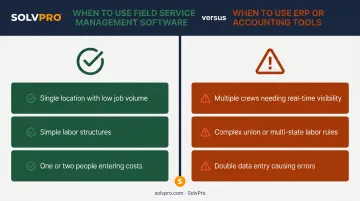
Native QuickBooks job costing is a solid fit for straightforward operations. It starts to strain as job volume, crew count, and labor complexity climb.
Works best when you have:
- A single location with low-to-moderate job volume
- Simple labor structures (no union scales, no multi-state tax rules)
- One or two people responsible for entering costs consistently
Starts breaking down when:
- Multiple crews in the field need real-time cost visibility, not end-of-day updates
- Labor burden calculations get complicated by union rates or multi-state payroll taxes
- Double data entry between field tools and QuickBooks starts introducing errors
That last point matters more than it sounds. In AGC's 2024 Construction Outlook survey of 1,293 contractors, 48% already use mobile software to pull job-cost or project reports from the field, and 67% use it for daily field reports. That's a clear signal: field teams need cost visibility where the work happens, not just at a desk running QuickBooks reports after the fact. Platforms like SolvPro close that gap by syncing job costs to QuickBooks Online in real time, eliminating the manual re-entry causing those errors.
Common Mistakes to Avoid When Job Costing in QuickBooks
Most bad job cost reports trace back to a handful of habits, not a software flaw.
- Skipping the job field. Failing to assign every expense or timesheet entry to a job lets small costs quietly erode reported profitability, one missed $30 charge at a time.
- Inconsistent cost codes. Switching categories between jobs makes cost comparisons impossible over time, since last month's "materials" might be this month's "supplies."
- Reviewing too late. Checking job cost reports only after a project wraps means overruns get discovered, not prevented.
- Estimating outside QuickBooks. Building estimates in a spreadsheet and never bringing a summary into QuickBooks disables meaningful budget-versus-actual comparisons for that job.
None of these are complicated fixes. They're discipline problems, and they compound fast across a busy job board.
Alternatives & Complementary Tools for Job Costing Beyond QuickBooks
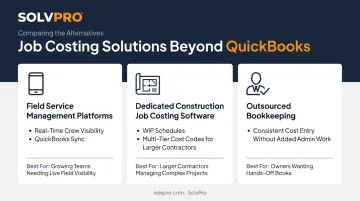
As crews and job volume grow, native QuickBooks job costing alone often can't keep pace. That doesn't mean replacing QuickBooks — it usually means pairing it with something built for the field.
Field Service Management Platforms (like SolvPro)
When it's better: businesses with crews spread across multiple job sites who need real-time cost visibility instead of next-day reports.
SolvPro logs labor hours and materials by job as the work happens, not after someone remembers to enter a timesheet. Time entries carry event-based geolocation stamps, so office managers can confirm crews were actually on-site when they logged hours, a practical accountability check that QuickBooks alone doesn't offer.
Phase-based estimating lets a job move from approved quote to active work order without re-keying scope. The whole platform syncs with QuickBooks Online on every tier, including the $179/month Starter plan.
Key trade-offs: it's a second platform to learn. SMB-focused tools like SolvPro offset that with setup in under 10 minutes, no long-term contracts, and live onboarding support rather than a help-center article.
Dedicated Construction Job Costing Software
When it's better: larger commercial contractors who need detailed work-in-progress (WIP) schedules and multi-tier cost code hierarchies beyond what QuickBooks natively supports, especially on jobs with dozens of active cost codes and retention tracking.
Key trade-offs: higher software cost and a steeper learning curve than staying inside QuickBooks, plus dedicated training time for office staff used to simpler systems.
Outsourced Bookkeeping or Accounting Services
When it's better: owners who don't have the time or in-house expertise to maintain consistent job costing discipline week after week, particularly during busy seasons when job counts spike.
Key trade-offs: recurring service fees and less day-to-day control over exactly when job cost data gets entered into QuickBooks.
For most growing service businesses, the right setup blends QuickBooks for core accounting with a field-focused tool that keeps job cost data accurate without piling on admin work. If you want to see how that pairing works in practice, SolvPro's team offers a live demo walkthrough rather than a self-guided tour.
Frequently Asked Questions
Can QuickBooks do job costing?
Yes. Both platforms support job costing via sub-customers, classes/locations, or the Projects feature, though setup is manual since QuickBooks isn't built for construction-specific costing.
What accounting software can I use for job costing?
Beyond QuickBooks, options include construction-specific platforms and field service management tools like SolvPro, which sync with QuickBooks Online for more automated, real-time job cost tracking.
Is job costing available on every QuickBooks Online plan?
The Projects feature requires QuickBooks Online Plus or Advanced. Sub-customers and classes/locations are available on lower tiers, though with some feature limitations.
What's the difference between job costing in QuickBooks Online and QuickBooks Desktop?
QBO offers simplified, cloud-based Project tracking. QBD provides more granular Customer:Job structures and industry-specific contractor reports, but requires more manual maintenance.
How often should I review job cost reports?
Review reports at least weekly during active projects. Waiting until job completion means you find out about a cost overrun after it's too late to fix.
Do I need special training to set up job costing in QuickBooks?
Most small business owners can handle basic setup using QuickBooks' own guides. Many still bring in a bookkeeper early on to build consistent cost codes from day one.